Axon Evidence.com
The Axon Evidence.com integration allows users to access and manage evidentiary material from Axon Evidence.com directly in eProsecutor Online.
View Evidence.com data
Quickly and conveniently view evidence.com evidence records directly from your eProsecutor Online case.
Once your administrator configures the integration, your case records include a new tab for Evidence.com.
Click the Evidence.com tab to show the default Evidence.com view.
Until you add evidence material, no records show:

Add evidentiary records
To link your eProsecutor Online Case with an Axon evidence.com Case:
-
Click New.
-
In the
Axon Case IDpopup, enter the relatedAxon Case IDfrom Evidence.com.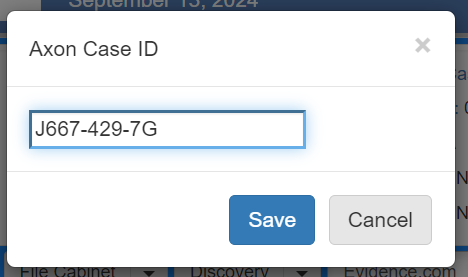
-
Click Save.
The following screen shows an example case with the Axon Case ID J667-429-7G.
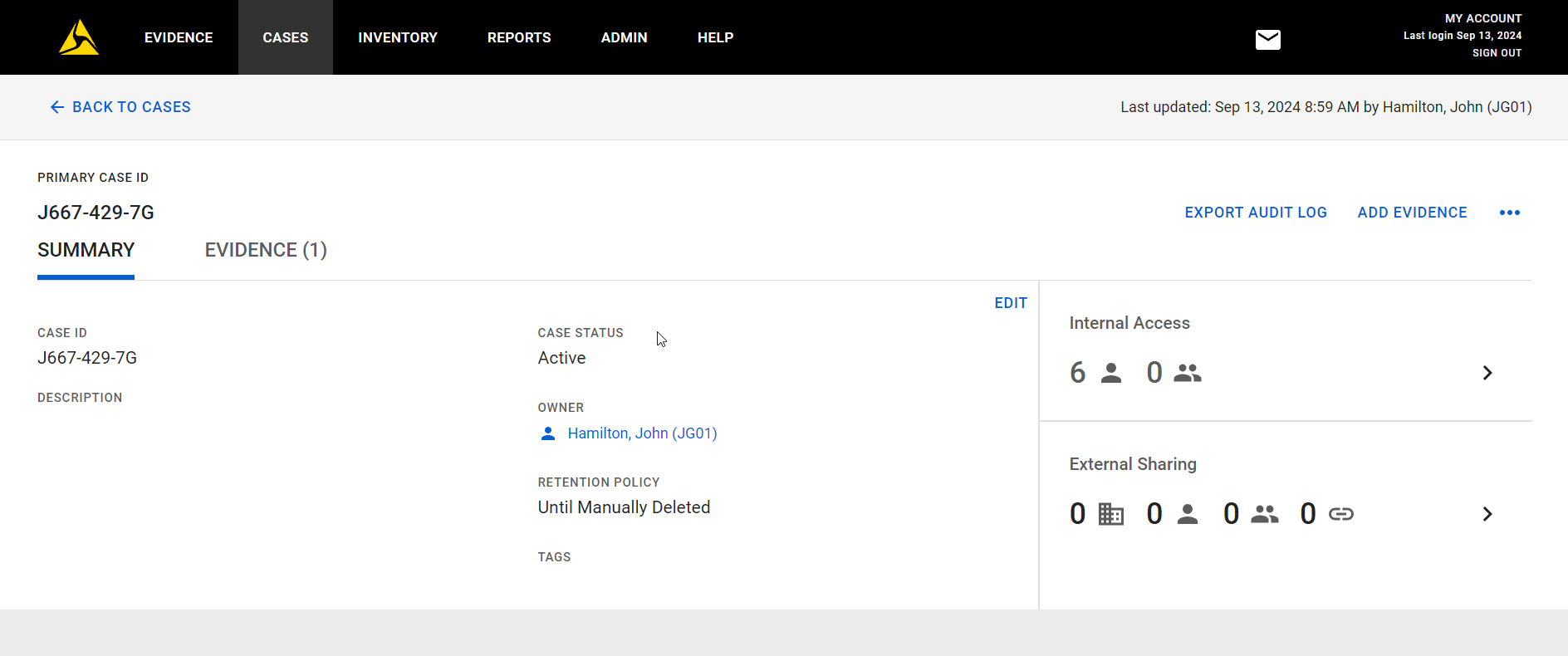
The system validates the Axon Case ID and returns the evidentiary records associated with the case.
An error shows if the Axon Case ID is invalid or already exists on this eProsecutor Online Case.
The Axon Case ID value is case-sensitive.
|
The system downloads information about all evidentiary records associated with the Axon Case ID.
The following screenshot shows an evidentiary record associated with the Case:
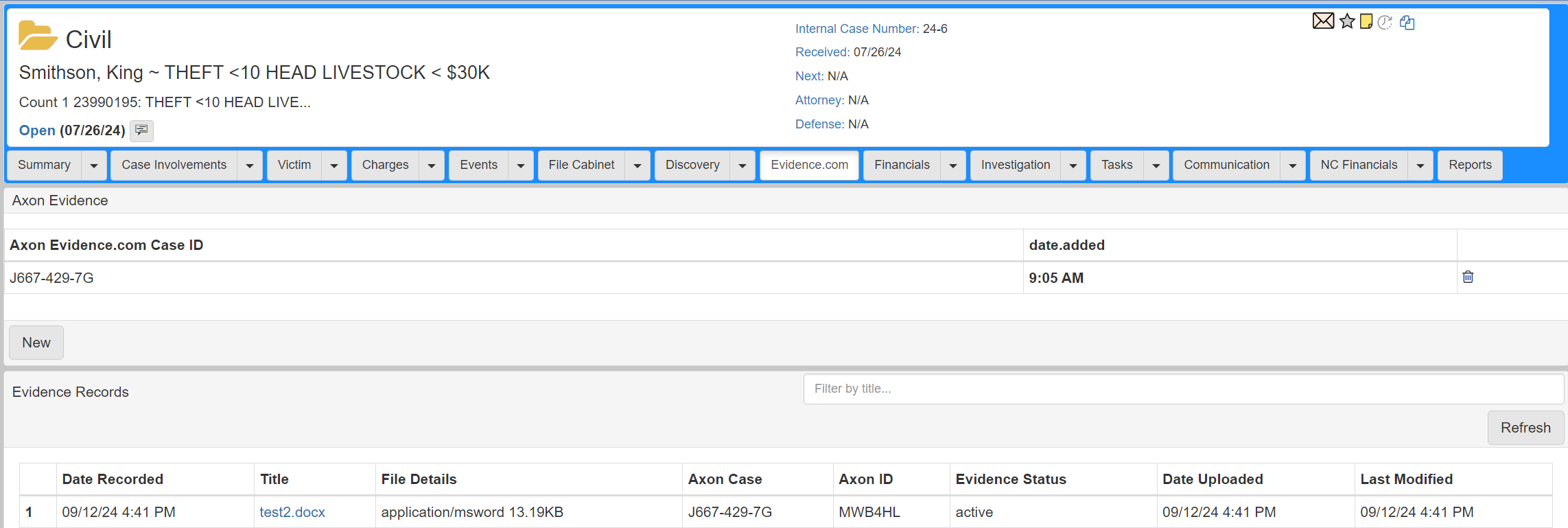
Multiple Axon Case IDs can be associated with a case in eProsecutor Online.
The system updates the evidence records when it finds new evidence records on Evidence.com.
Work with evidentiary records
To work with an evidentiary record, click the link in the Title column in the Evidence Records section.
The system redirects you to your instance of Axon Evidence.com and shows the evidence record.
Log in to Axon, if requested.
Delete evidentiary records
You cannot delete evidentiary records from eProsecutor Online.
If your case is incorrectly linked to an Axon Case ID, you can delete the link by clicking the  icon for the
 Axon Case ID.
Confirm the action to remove all references to the evidence related to the deleted Axon Case ID.
The evidentiary records remain on Evidence.com.
Manually refresh evidentiary records
eProsecutor Online polls for new evidentiary material based on the configured query interval.
To manually refresh the data for a Case, access the Evidence.com tab for the Case and click Refresh.
After confirming the Refresh action, the system shows a message dialog while refreshing the evidence records for the associated Axon Cases.