Case status flow
This report shows the progression of Cases through different statuses.
It shows how many Cases start at each status and how many transitioned between statuses.
It shows the time spent in each status and the overall Case duration.
Click the # Cases column in the summary section to show a Case details sub report listing the associated Cases.
Fields

Use the Received From and Received To fields to show Cases with a received date between those dates, inclusive.
Use the Case Type field to show Cases with that type.
Received From-
Defaults to the first day of the previous quarter.
Received To-
Defaults to the last day of the previous quarter.
Case Type-
Defaults to all
Casetypes.
Summary
The report shows all statuses in which Cases entered the system.
For each status, the report shows:

-
Casestatus. -
The
Casecount per status. -
The average days
Casesstay in each status. -
The average
Caseduration, in days.
Click  next to a
 Case status to show the next statuses.

You can expand each status until Cases reach their current status.
Case details
The detail section shows the following information about each Case included in a status step:

-
The
Caseidentifier. -
The
Casetype. -
The date the
Caseentered the system. -
The date the
Caseentered the status. -
The date the
Caseexited the status. This is blank when theCasestatus is current. -
The days between the
Entered StatusandExited Statusdates, inclusive. With noExited Statusdate, the days between theEntered Statusand the current date. Empty when theCasehas theClosedcategory. -
The days between the
Received DateandExited Statusdates, inclusive. With noExited Statusdate, the days between theReceived Dateand the current date. When theCasehas theClosedcategory, the days between theReceived Dateand theEntered Statusdates.
The Case, Case Type, and Received Date values show in the header of the Case Folder View.

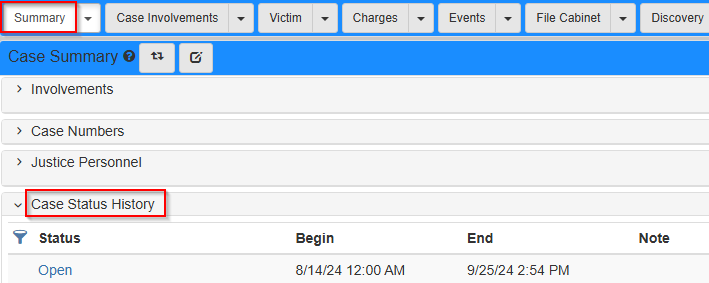
The history of Case statuses shows in the Case Status History section of the Summary tab in the Case Folder View.