Directory organization
A Directory Organization is a non-person entity that is part of the justice system.
They can represent a court, a law enforcement agency, a prosecutor office, or other organization that needs to be tracked.
Searching for a directory organization

Criteria:
-
Name or Code: Enter the name or code of the organization. -
Group: Use to filter results. -
Status: Select the current status of the organization, one of:-
All -
Active -
Inactive
-
-
Resource: Use to filter results. -
Type: Select the type of the organization, one of:-
All -
Court -
Defense -
Law Enforcement -
Non-Agency Specific -
Probation, Parole, Pretrial, Other -
Prosecutor
-
-
Active: Start and end date of activity for the organization.
Buttons:
-
Search: Execute the search, with no criteria, to return a paginated list.
-
Clear: Reset search criteria.
-
Add new organization: Opens the form to add a new Directory Organization.
-
Import: Import a Excel spreadsheet of organizations.
Add a directory organization
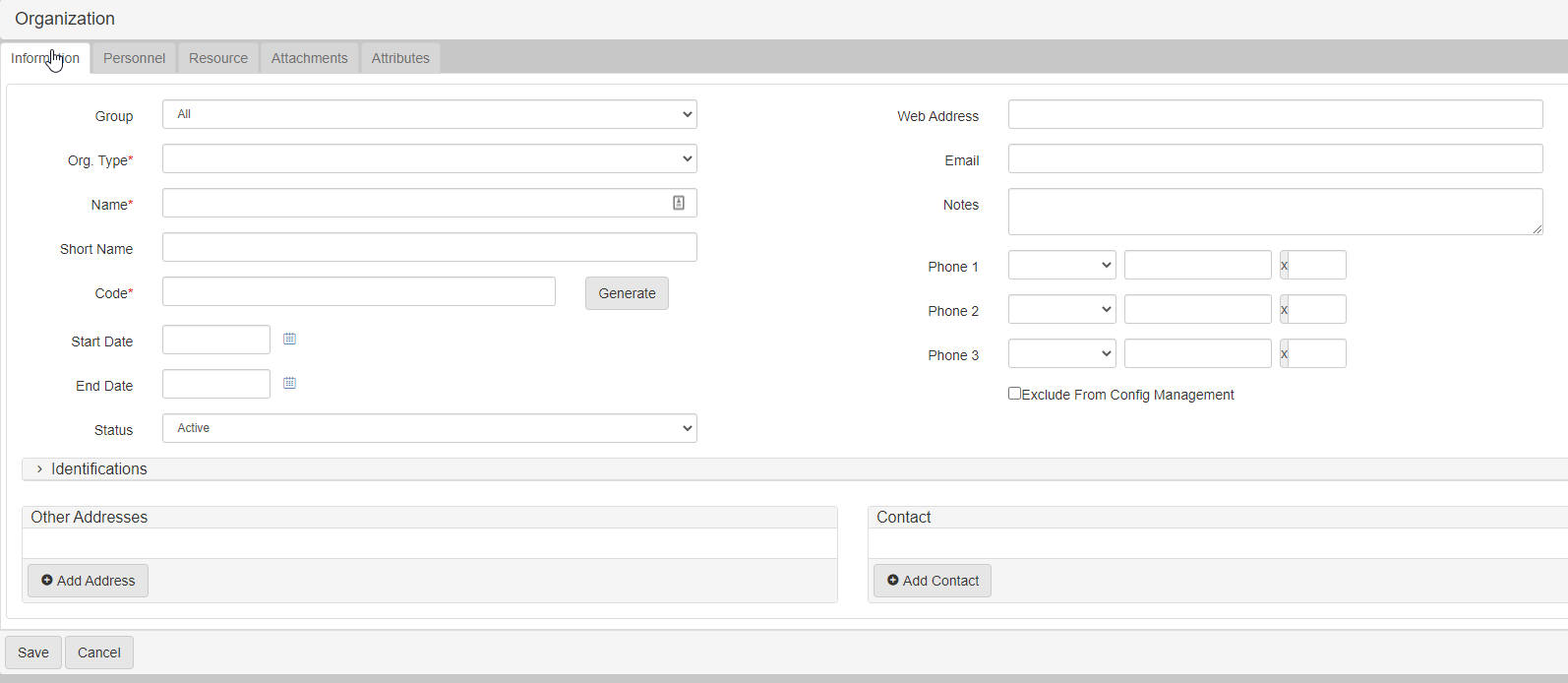
To add a new Directory Organization, click Add New Organization:
-
Org. Type: Select the organization type choosing from:-
Court -
Defense -
Law Enforcement -
Non-Agency Specific -
Probation, Parole, Pretrial, Other -
Prosecutor
-
-
Name: The name of the organization. -
Short Name: The shortened version of the name, sometimes displayed on screens and can be used in documents and reports. -
Code: Unique code for the organization. If you do not want to come up with one, use the Generate button to generate one for you.
-
Start Date: Date this organization is available in drop downs in the system. -
End Date: Date this organization is no longer available in drop downs in the system. -
Status: Defines if the organization isActiveorInactive. -
Web address: the website for the organization. -
Email: email for the organization. -
Notes: notes relating to the organization. -
Phone 1,Phone 2andPhone 3:
-
Choose the phone type:
Cell Phone,Fax,Home Phone,Work Phone. -
Enter the ten-digit phone number.
-
Optionally enter the extension.
-
Org. Type, Name, and Code are all required.
|
Optional items
Optionally, you can add:
-
Directory person and directory organization identifications for an organization.
-
Address -
Contact -
Personnel(Directory person) -
Resources -
Attachments -
Attributes
Bulk importing directory organizations
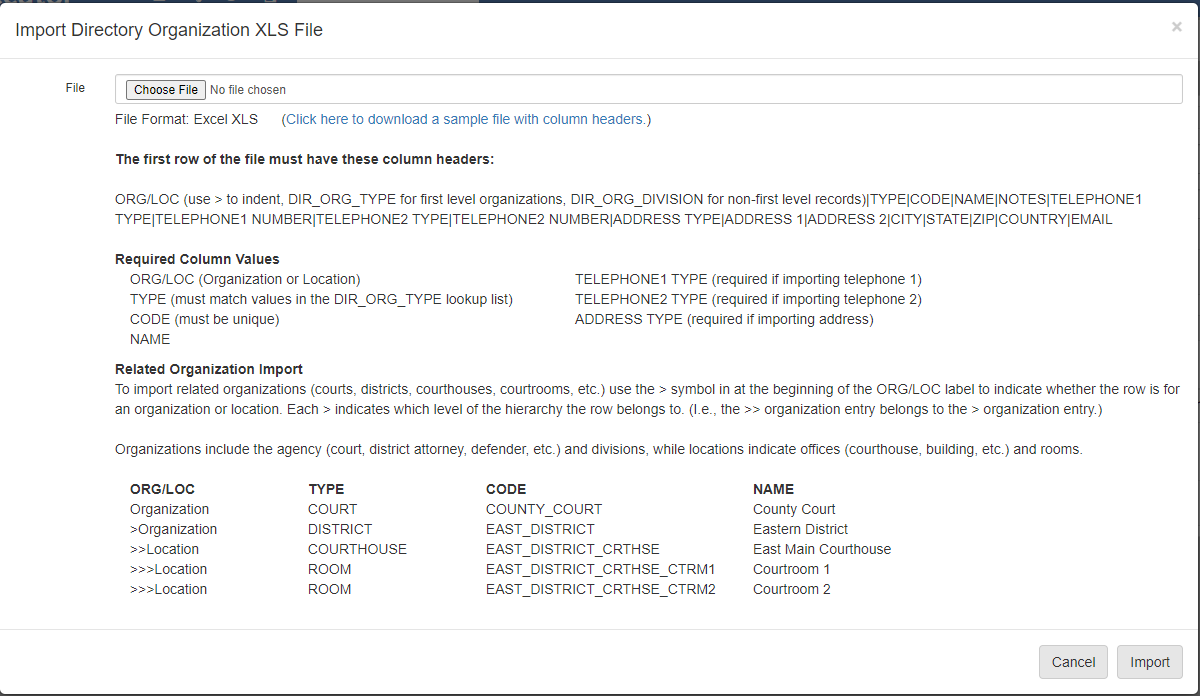
Click Import to enter the format of the requisite Excel file for bulk import. The window also includes a link to a sample file with the required column headers. Click Choose File at the top to choose the file to import. Click Import on the lower right to start the import.
Edit a directory organization
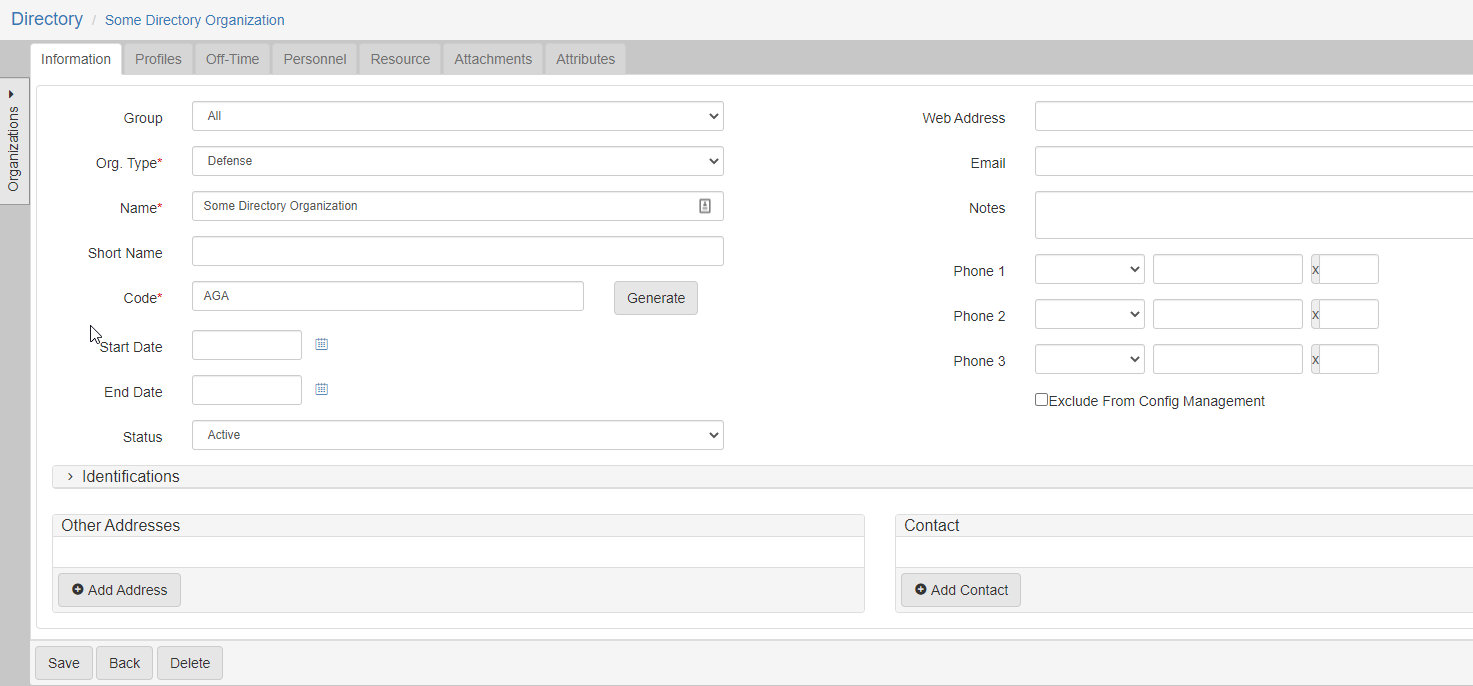
If you click an organization name, the Update form is shows:
-
Org. Type: choose the organization type choosing from:-
Court -
Defense -
Law Enforcement -
Non-Agency Specific -
Probation, Parole, Pretrial, Other -
Prosecutor
-
-
Name: The name of the organization. -
Short Name: The shortened version of the name, sometimes shown on screens and can be used in documents and reports. -
Code: Unique code for the organization. If you do not want to come up with one, click Generate to generate one for you.
-
Start Date: Date this organization is available in drop downs in the system. -
End Date: Date this organization is no longer available in drop downs in the system. -
Status: Defines if the organization isActiveorInactive. -
Web address: the website for the organization. -
Email: email for the organization. -
Notes: notes relating to the organization. -
Phone 1,Phone 2, andPhone 3:
-
Choose the phone type:
Cell Phone,Fax,Home Phone,Work Phone -
Enter the ten-digit phone number.
-
Optionally enter the extension.
-
Org. Type, Name, and Code are all required.
|
Optional items
Optionally, you can add:
-
Directory person and directory organization identifications for an organization.
-
Address -
Contact -
Off-time -
Personnel(Directory Persons) -
Resources -
-
Addresses: Click Add Address (1) and fill in the form (2):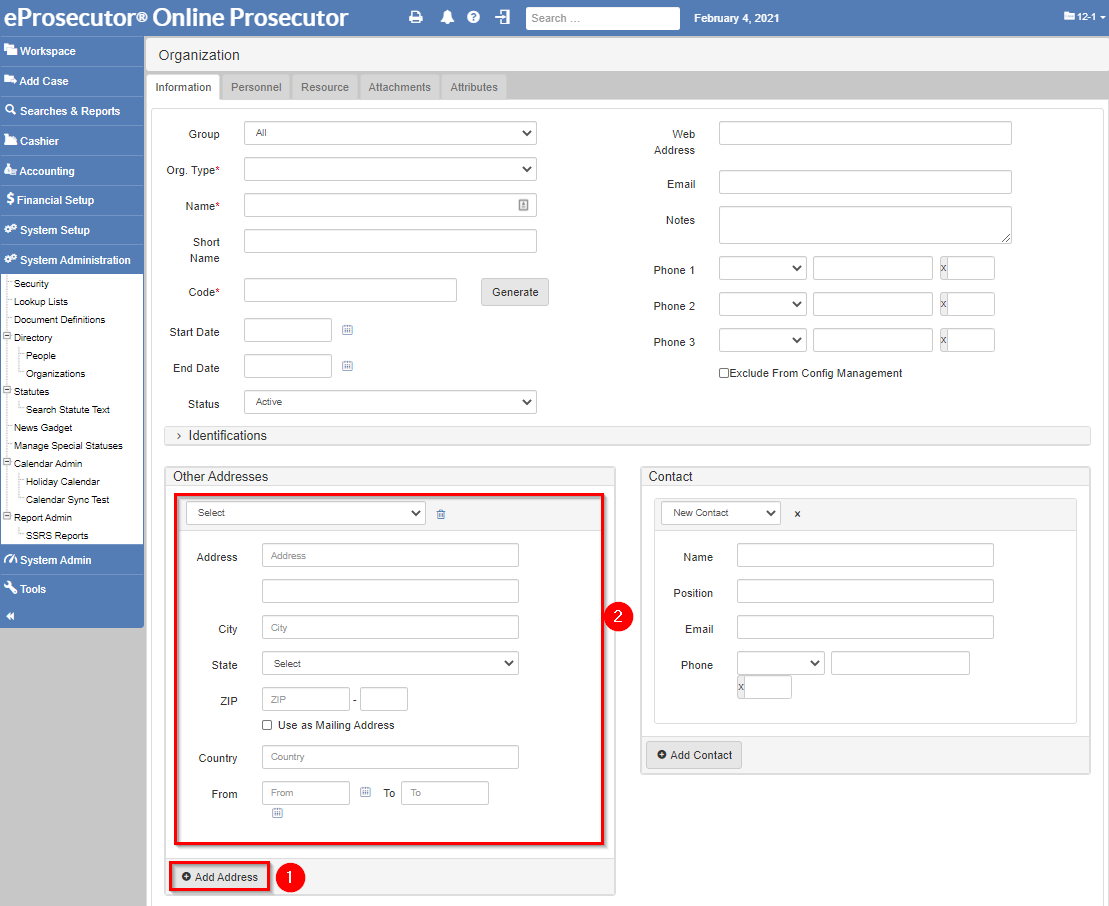
-
Contact: Click Add Contact (1) and fill in the form (2):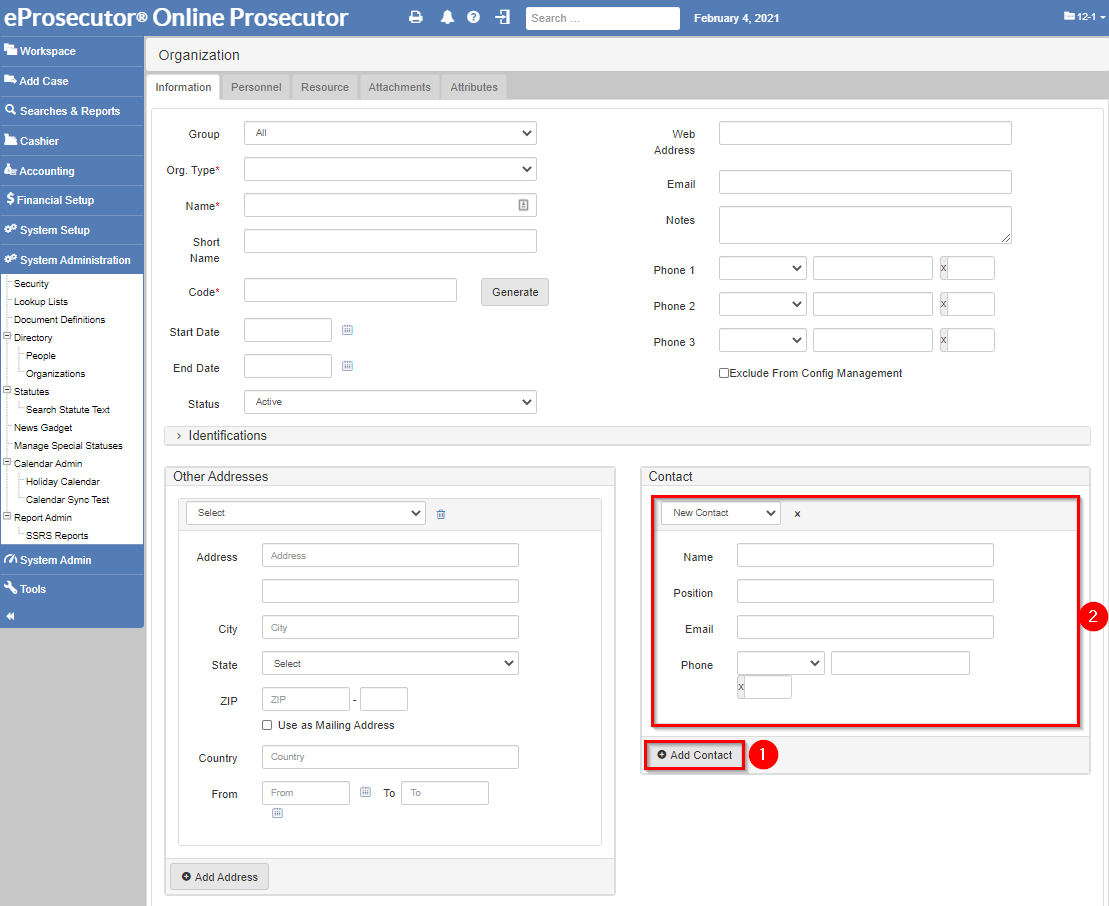
-
Off-Time: Select theOff-timetab, then click Add off-time.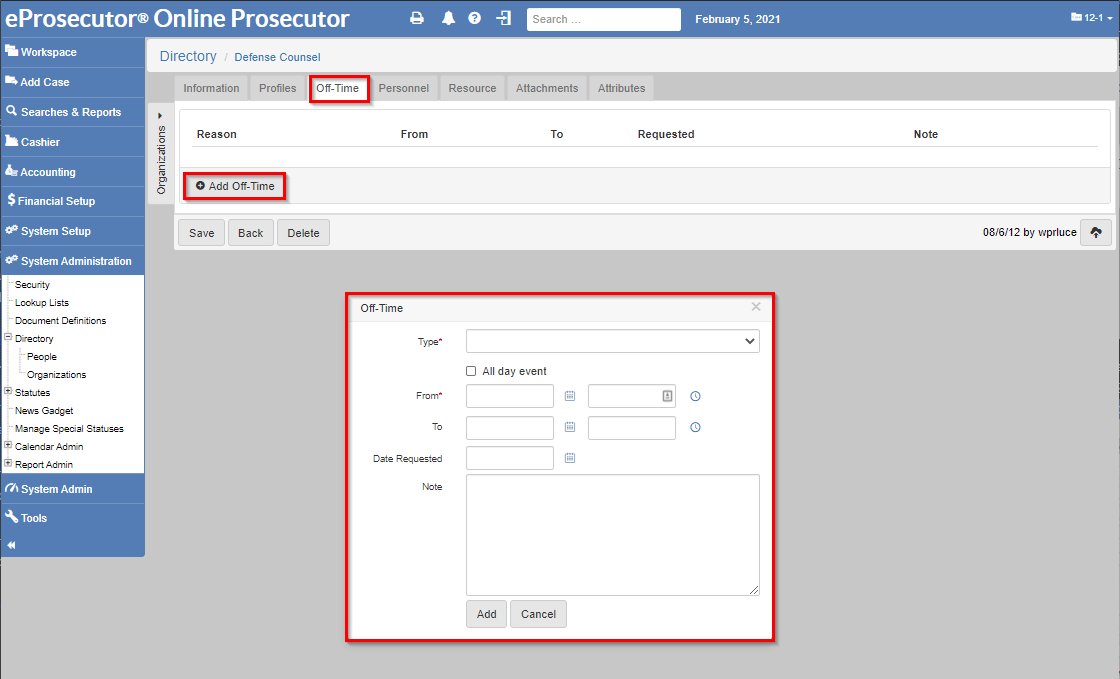
-
Resources: Select theResources tab, then click Add Resource.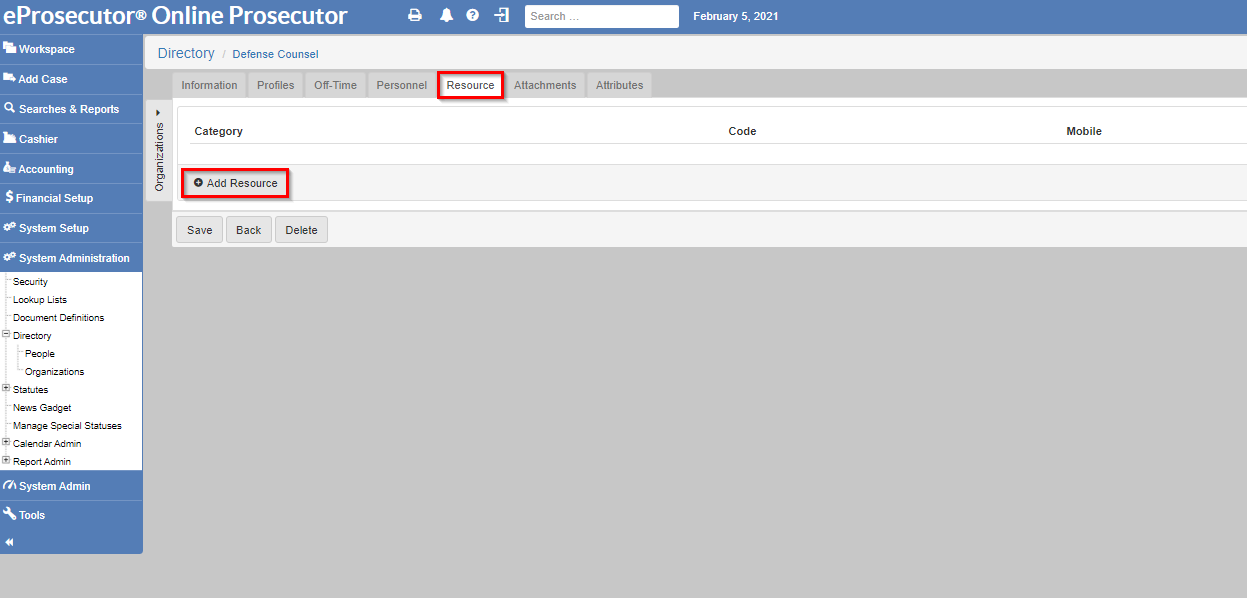
-
Directory organization management
Move an organization
An Organization can be moved to a different parent organization.
-
Select
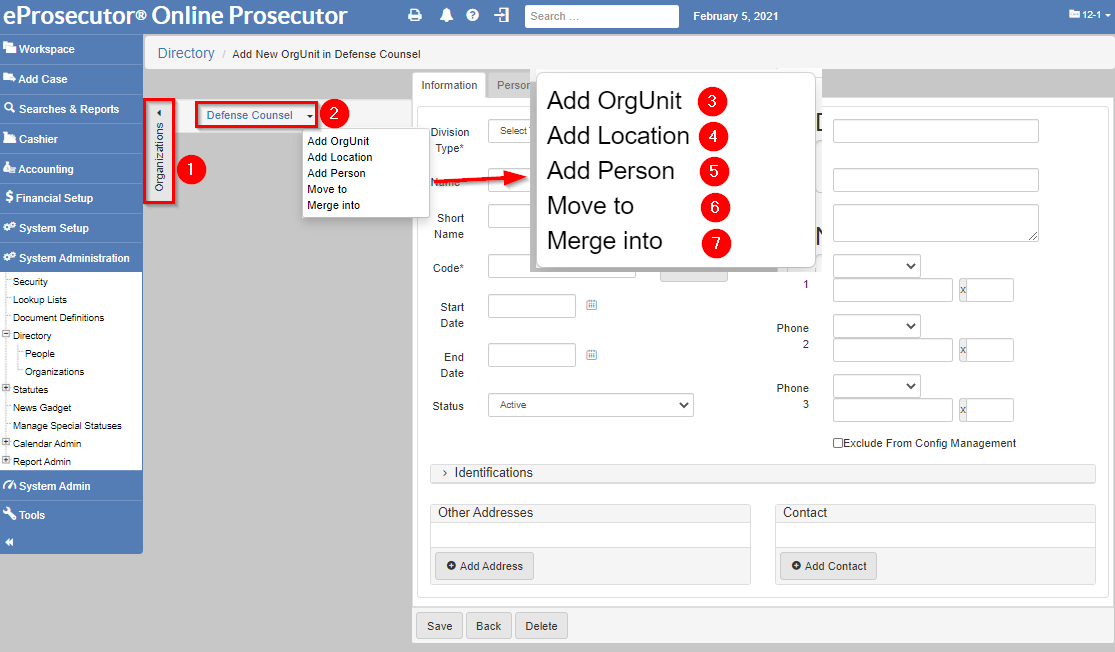
Organizations, on the right side of the left navigation (1). -
In the
organizationdropdown (2), selectMove to(6). -
Select the new parent
OrganizationorLocationfrom the dialog. -
The
Organizationcan be found under theOrganizationin theOrganizationtree.
This feature allows you to mimic the personnel hierarchy of an organization or the physical structure of a building.
Merge organizations
When two organizations have the same name, you can use a merge operation to combine them into one.
-
Select
Organizations, on the right side of the left navigation (1). -
In the
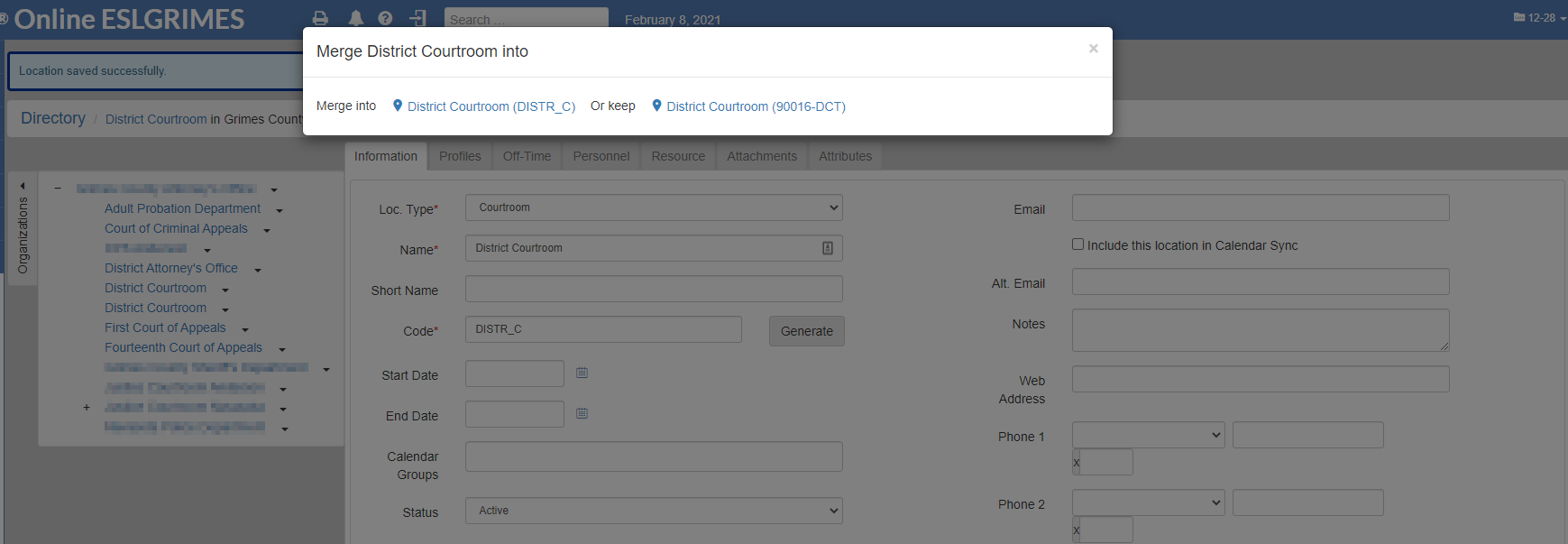
organizationdropdown (2), selectMerge into(7). A dialog opens asking how to merge the organizations. -
Click one of the merge options:
-
Click the
Merge intolink to merge this organization into the other organization. -
Click the
Or keeplink to merge the other organization into this organization.
-
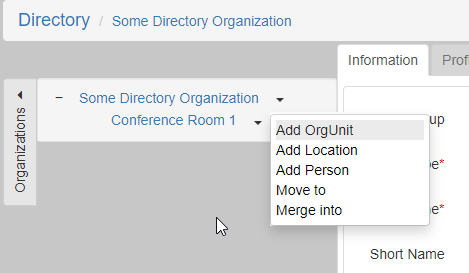
Also, one can create more organization details including Divisions (sub OrgUnit), Locations, Persons using the expanded Organizations panel.
In the following image, the organization has a location named Conference Room 1:
Add an OrgUnit
An OrgUnit, short for "Organization Unit," is a subordinate organization in an organization.
They can be used to represent divisions, departments, or other subgroups.
To add an OrgUnit:
-
Select
Organizations, on the right side of the left navigation (1). -
In the
organizationdropdown (2), selectAdd OrgUnit(3). -
Fill in the form that shows and click Save. The new
Orgunitis under theOrganizationin theOrganizationtree.
Add a location
You can add multiple locations to an organization:
-
Select
Organizations, on the right side of the left navigation (1). -
In the
organizationdropdown (2), selectAdd Location(4). -
Fill in the form that shows and click Save. The new
Locationcan be found under theOrganizationin theOrganizationtree.
Add a person
You can add a person directly to a directory organization:
-
Select
Organizations, on the right side of the left navigation (1). -
In the
organizationdropdown (2), selectAdd Person(5). TheAdd New Directory Personscreen shows.
| For more information on Directory Person, refer to Directory person. |