Cases gadget
The Cases gadget shows a list of your recent cases.
The gadget can be configured to show watched cases, assigned cases, upcoming events, recent activity, and workflow tasks.
By default, the Cases gadget shows some information about your recent cases.
Add the cases gadget
To add the Cases gadget to your Dashboard, make sure you have the Dashboard tab selected, if you have multiple tabs available.
-
Click the gear icon at the top of the
Dashboard. -
Click the green
+icon to add cases to yourDashboard.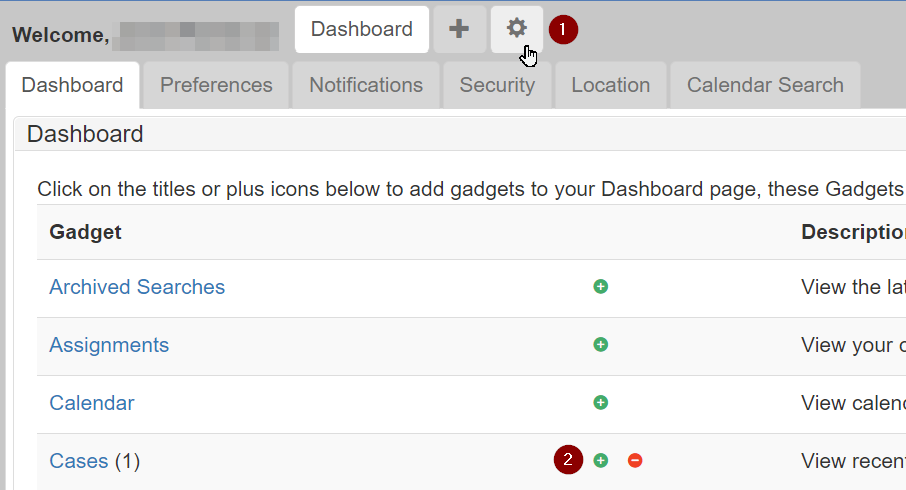
The Cases gadget should now be at the bottom of the Settings screen.
Click Close Settings to exit.
Use the cases gadget
The Cases gadget must first be added to the Dashboard.
Once added, recent cases are shown in a default view.
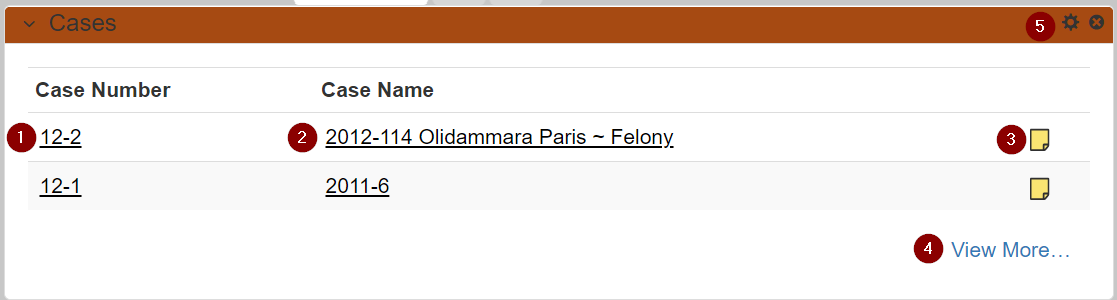
Review the available actions for the Cases:
-
Click a case Id in the
Case Numbercolumn to navigate to the recent case. -
Click a case title to navigate to the recent case.
-
Click the "paper" icon to open the
Case Notesin a dialog. -
Click the
View More…to show theMy Recent Casesscreen. It looks similar to the gadget.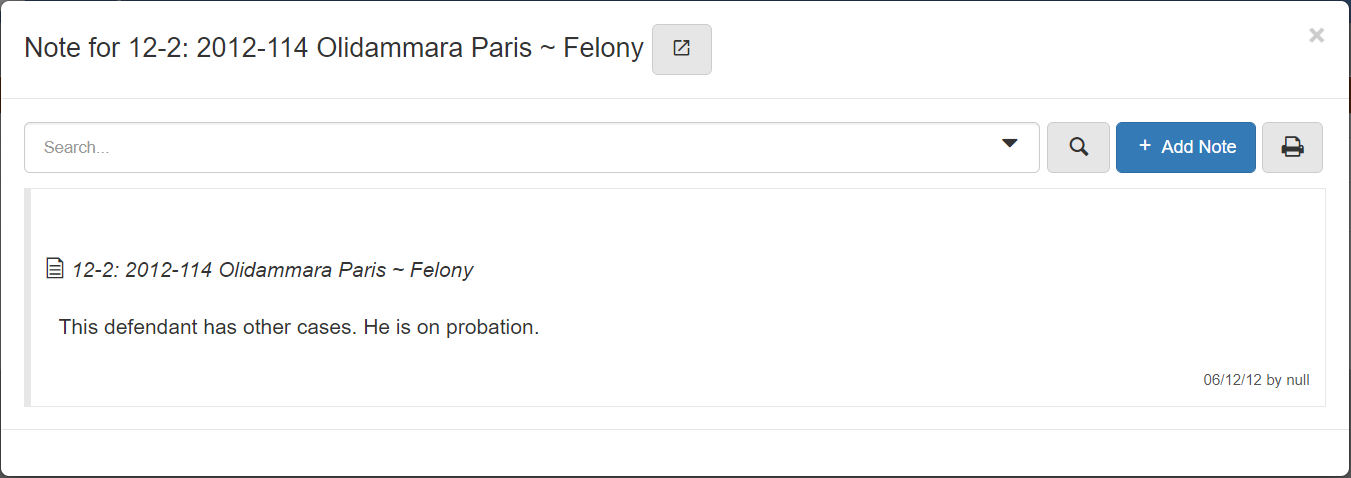
-
Click the gear icon to open the gadget configuration.
Configure the cases gadget
The Cases gadget can be configured to show other case related information.
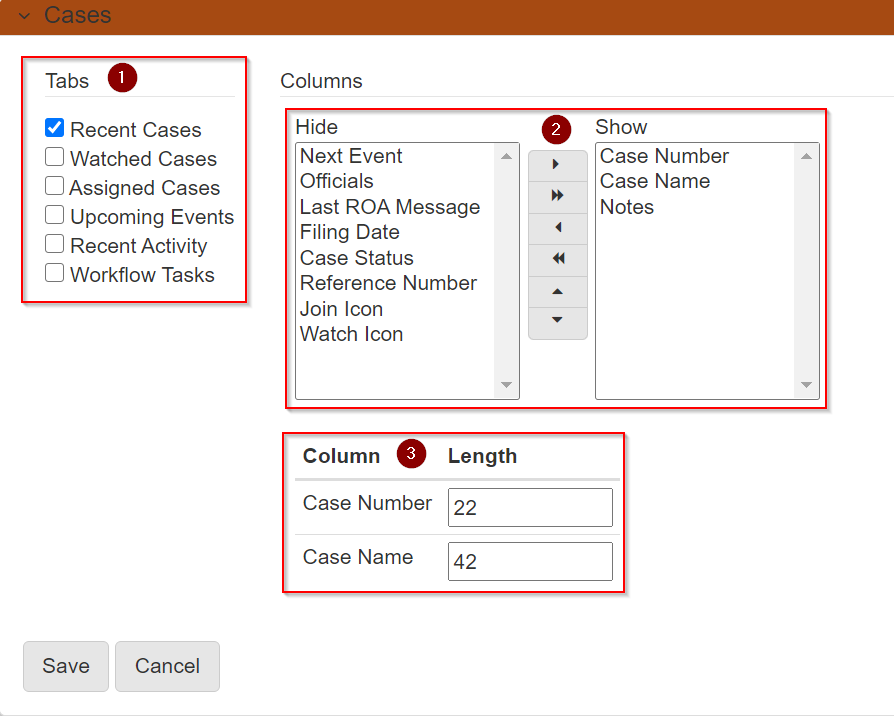
To configure the gadget, click the gear icon found in the top right corner of the gadget.
-
Select which tabs you want shown in the gadget. The options are
Recent Cases,Watched Cases,Assigned Cases,Upcoming Events,Recent Activity, andWorkflow Tasks. Each selected item adds a new tab to the gadget. -
Select the columns you would like to show in the table.
-
Set the character length to show in the
Case NumberandCase Namecolumns.
Click Save to store the configuration.