Case stats by custom category
This report shows the number of Cases matching selected Case statuses which were received in a date range.
These numbers are aggregated by custom categories consisting of selected Case statuses.

Fields

Use the Start date and End date fields to show Cases with a received date between those dates.
There are five custom categories, each with two fields.
Only Category 1 is required to generate the report.
The other category fields are optional.
|
Use the Category Name field to specify a name for the category.
To set a category name:
-
Deselect
NULLfor the category. -
Type a value into the
Category Namefield.
For each custom category, use the Category_n_ dropdown to select the Case statuses to include in the category.
Start Date-
Defaults to the first day of the previous month.
End Date-
Defaults to the last day of the previous month.
Category Name-
Defaults to empty and returns the category number if a value is not provided.
Category-
Defaults to empty.
Received
The Received section includes Cases with a received date between the Start Date and End Date.
Expand this section to show the following details:

-
Casenumber. -
Name of the
Case. -
Casetype. -
Received date.
-
Casestatus. -
Date of the current
Casestatus.
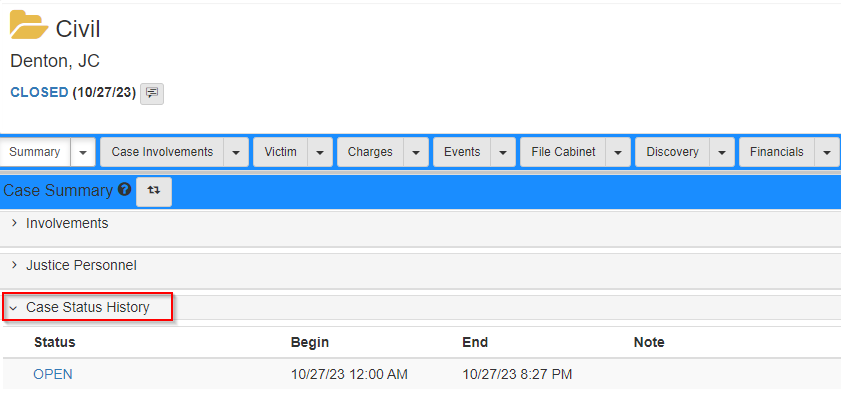
The Case Number, Case Name, Case Type Received Date, Status, and Status Date values show in the header of the Case Folder View.

Custom categories
Each Category section includes Cases with a current or previous Case status matching the Category field.
The label in the Category column matches the Category Name field.
If no value is provided in the Category Name field, it shows the category number.

Each category row shows the number of Cases included as a percent of Cases received.
This is calculated as the number of cases in the custom category divided by the number of received cases.

Expand this section to show the following details:

-
Casenumber. -
Name of the
Case. -
Casetype. -
Received date.
-
Casestatus. -
Date of the current
Casestatus.
The history of Case statuses is shown in the Case Status History section of the Summary tab in the Case Folder View.