Notifications
You can access and manage your Case notifications from the Dashboard screen.
Navigation
To access the Case Notifications configuration screen:
-
Click the
eAttorneybutton, then click the gear icon.
-
Click the
Notificationstab.
The
Case Notificationsscreen shows: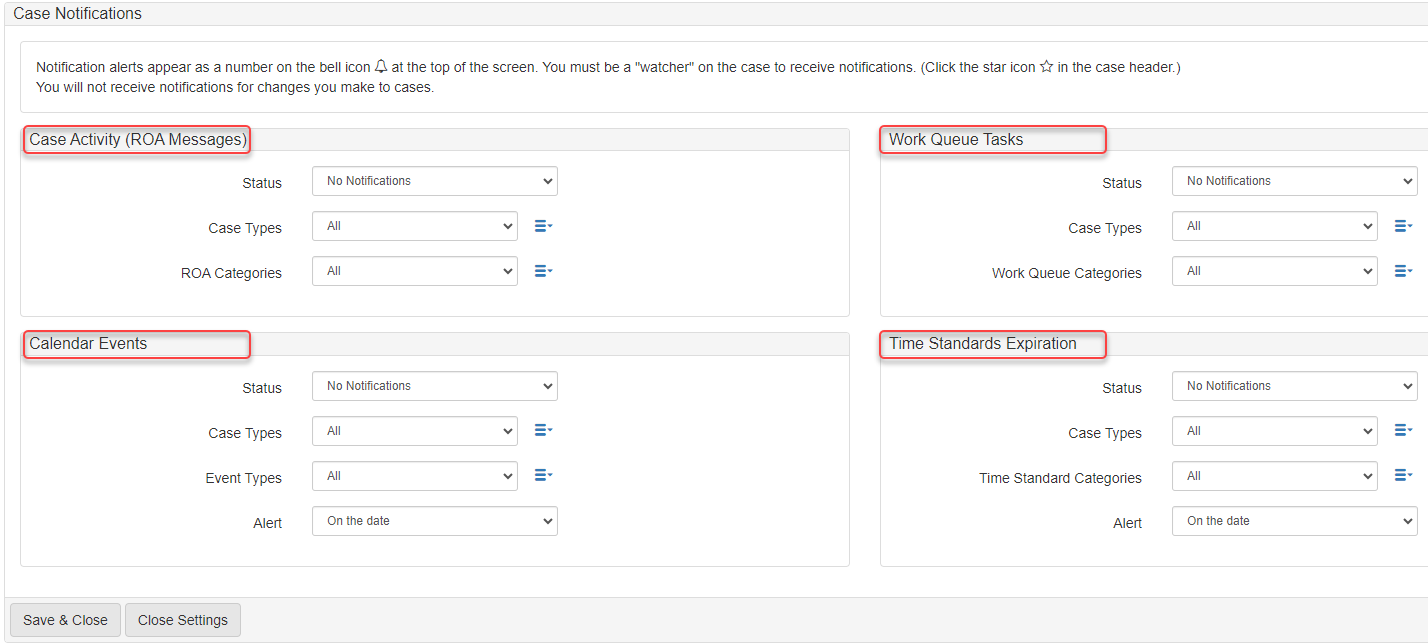
With this screen, you can set up notifications for the four different eAttorney areas.
Notification types
The Case Notifications screen supports the following notification types:
-
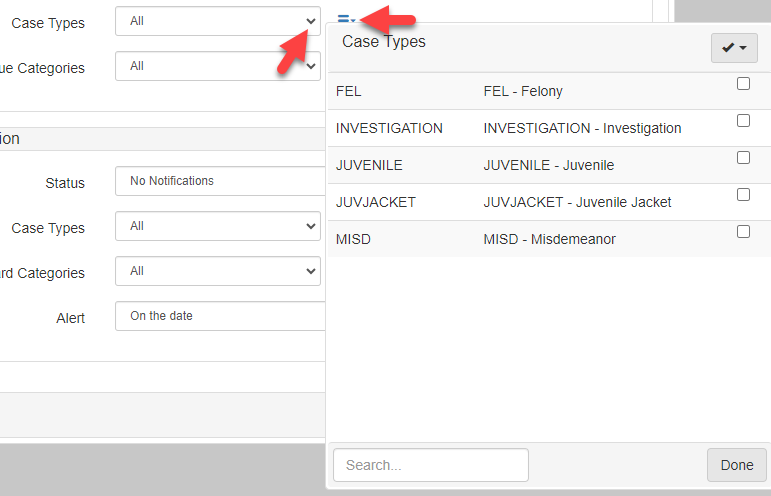
Case Activity (ROA Messages): use this type to receiveRegister of Actionnotifications.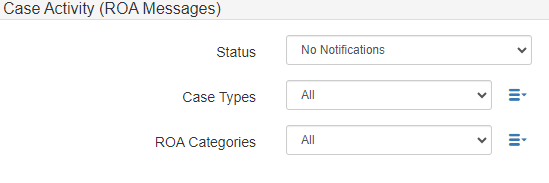
-
Work Queue Tasks: use this type to receiveWork Queuesnotifications.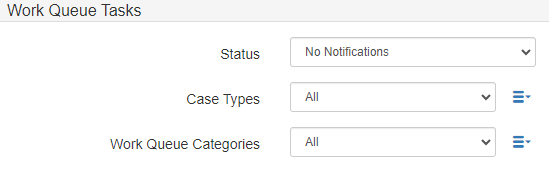
-
Calendar Events: use this type to receiveCalendar Eventsnotifications.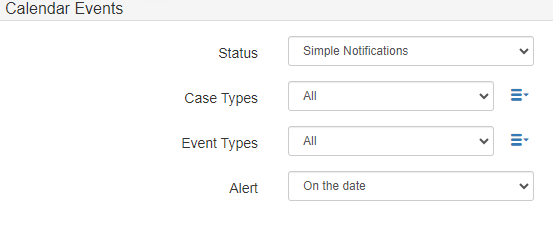
-
Time Standards Expiration: use this type to receiveTime Standards Expirationnotifications.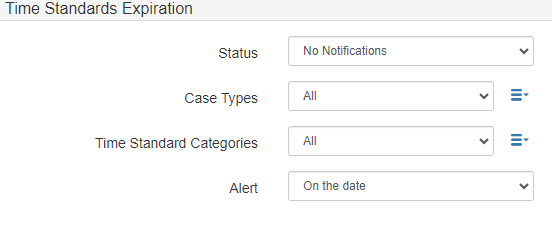
Status
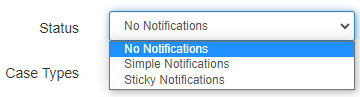
For all notification types you can select from three notification options in the Status dropdown:
-
No Notifications: use this option to turn off notifications. -
Simple Notifications: use this option to show a notification count beside the bell icon in yourTop Navigation.
Click the bell icon to show the
Notifications Center. The screen shows the time the notification timestamp, type of notification, subject, andCaseinformation.
-
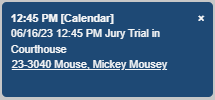
Sticky Notifications: use this option to show notifications as sticky pop-ups in the bottom right of your screen.